

Generatorr's Cinematic Motion scene turns one still photo into a short video with subtle camera movement and atmosphere. Choose a sharp image with a clear subject, upload it to the scene, and generate a five-second result. The strongest outputs preserve the subject while adding restrained depth, light, and camera motion that feels like a continuation of the original photograph.
What the Cinematic Motion scene does
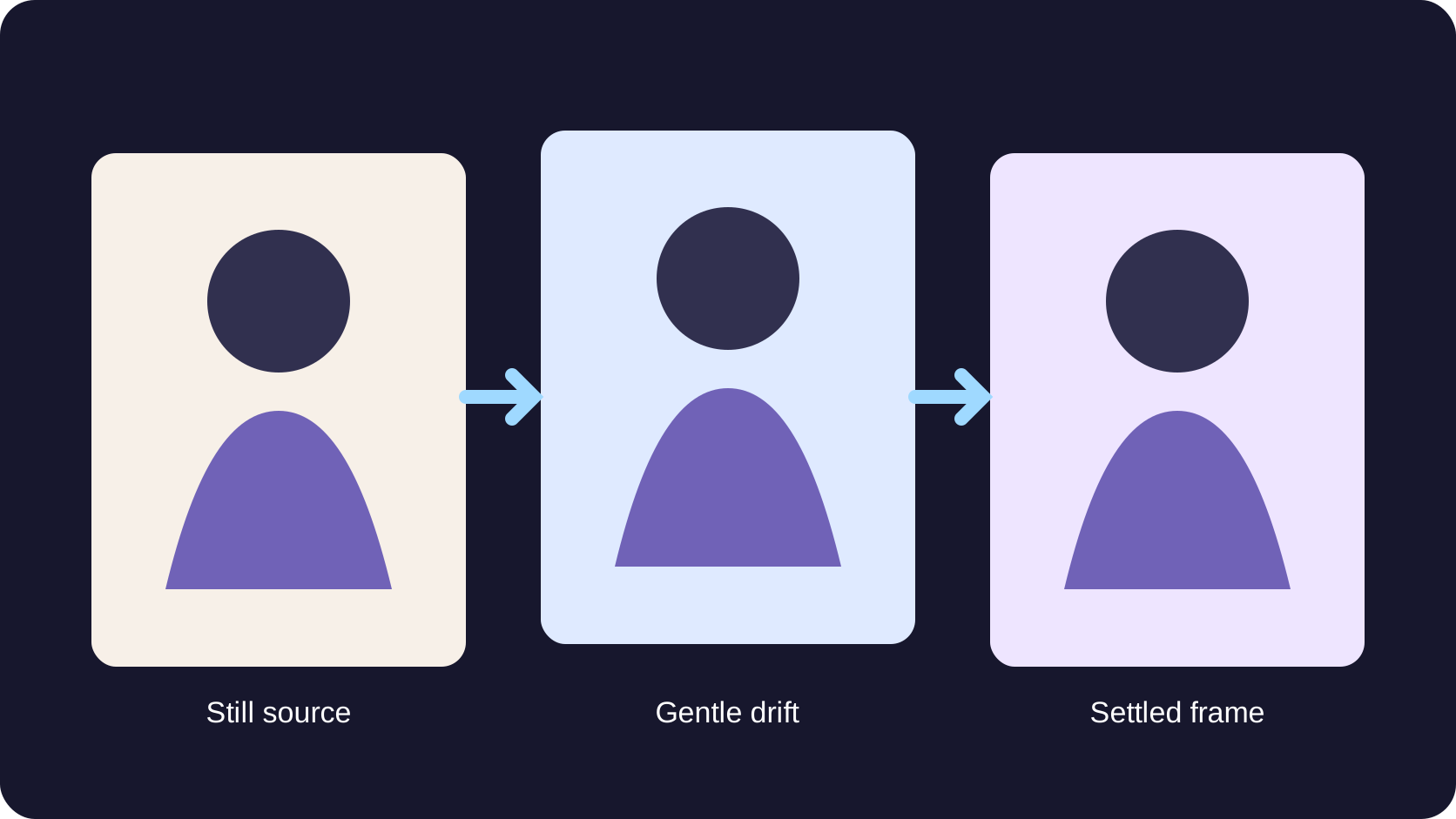
The Cinematic Motion scene gives a still photograph a short sense of movement without asking you to build a video timeline. It is designed for one source image and a restrained result: a gentle camera drift, a slight push through the frame, atmospheric light, or quiet background movement. The aim is not to replace the photograph with a different story. It is to make the original moment feel as if the camera stayed for a few more seconds.
Generatorr is an AI image and video generator built around focused creative scenes. Open the Cinematic Motion Video Generator, add a photo, and create a five-second video. The completed result can be downloaded and found again in your dashboard. Because the motion direction is already configured for the scene, you can concentrate on choosing a suitable source and reviewing the finished clip.
Choose a photo with room to move
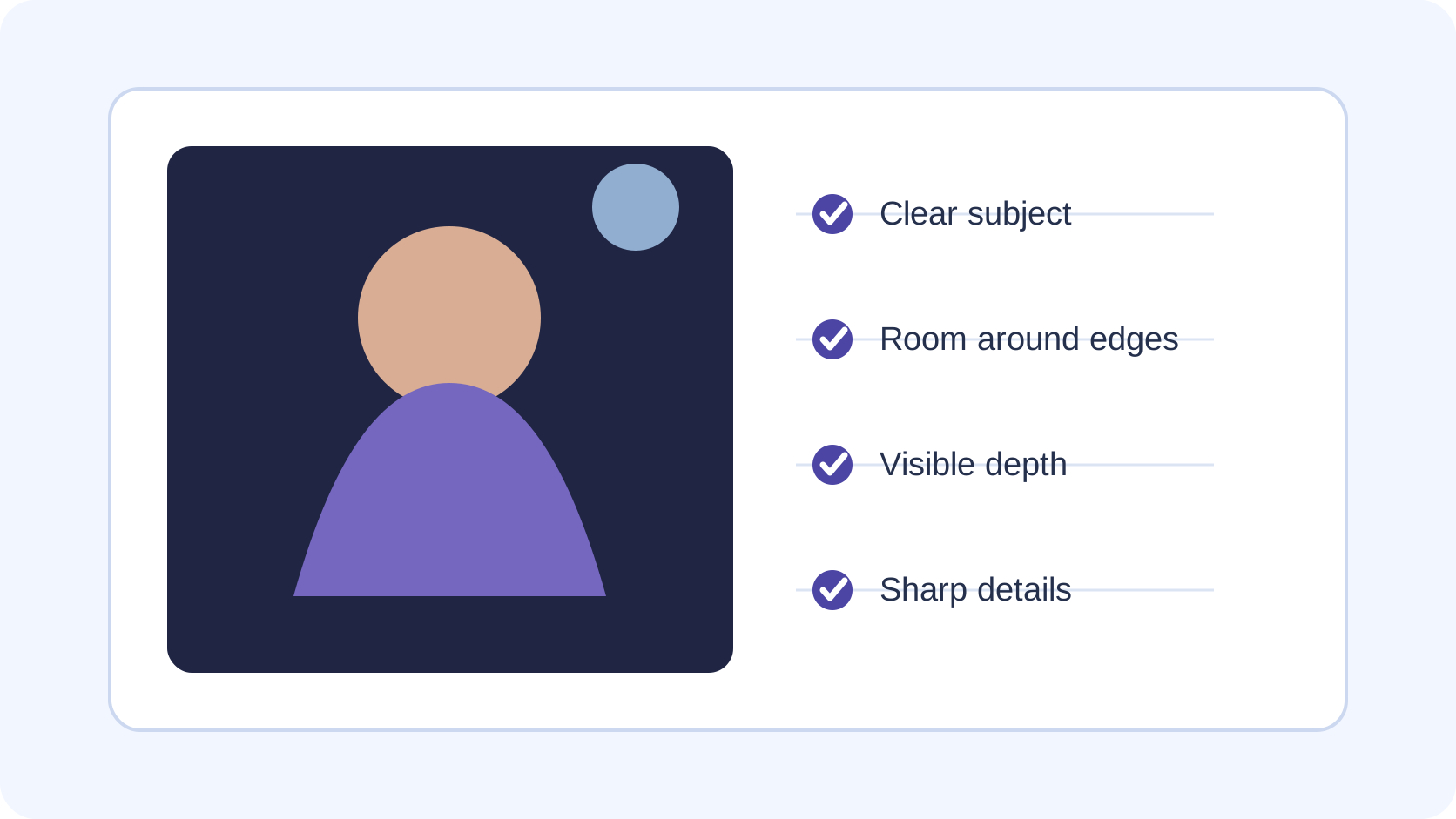
Start with the original image rather than a screenshot or a repeatedly compressed copy. The subject should be in focus, fully inside the frame, and large enough to retain facial, product, or environmental detail. Leave some visual space around important edges. A head cut off by the top border, a hand touching the side, or a product already cropped tightly gives the generated motion less room to resolve naturally.
Depth is especially useful. A foreground subject, middle distance, and softer background create layers that can respond differently to a small camera move. Portraits beside a window, products on a table, travel scenes with a clear horizon, and architectural details with leading lines often provide a readable structure. A flat image can still work, but movement may feel more like a zoom than a camera passing through a space.
Match the motion to the photograph
A successful motion idea usually begins with something already implied by the image. Hair can react slightly to air, fabric can settle, reflections can shift, leaves can move, and light can travel softly across a surface. Camera motion may push in toward the subject or drift across the scene. Keep the action small enough that the original pose, product shape, or location remains the reason the clip is interesting.
Avoid expecting one still image to support a complicated sequence. A short clip does not need several events, a dramatic transformation, and a fast camera move at the same time. Choose one dominant direction. Subtle motion is often more convincing because it asks the system to continue visible information instead of inventing large areas that the photograph never showed.
Prepare portraits without losing identity
For portraits, use an adult photo you own or have permission to animate. Choose even light, visible eyes, a natural expression, and a background that is not crossing the face with hard lines. The mouth, eyelids, hairline, earrings, glasses, and fingers are useful checkpoints because small changes in these areas can make the person feel different even when the overall clip looks polished.
The source portrait should already feel complete. Do not rely on cinematic movement to correct blur, extreme exposure, a hidden face, or a cut-off shoulder. If the portrait needs preparation first, the five-minute portrait checklist explains how framing, focus, light, and expression affect later AI work. Keep an untouched copy beside the generated video for identity review.
Use product photos carefully
Product motion should preserve evidence. Labels, logos, controls, seams, proportions, and packaging text must not quietly change while the camera moves. Start from a sharp image with the complete object visible and enough space for a small push or lateral drift. Simple light and a controlled surface make it easier to distinguish intentional atmosphere from an altered product detail.
Watch the clip frame by frame around fine type, reflective edges, transparent materials, and repeating patterns. If a bottle label changes spelling or a device gains a button, the result may still be visually attractive but it is not suitable as an accurate product representation. The older AI product photo review workflow provides a useful identity and handoff checklist before publication.
Generate the scene in three steps
First, open the Cinematic Motion scene and upload one JPG, PNG, or WebP image. Use the largest clean source available within the upload limit. Second, confirm the photo is oriented correctly and that the subject has not been accidentally cropped by the preview. Third, select Generate and allow the request to finish. Avoid starting another paid generation simply because a status check is still processing; the dashboard is the place to confirm saved work.
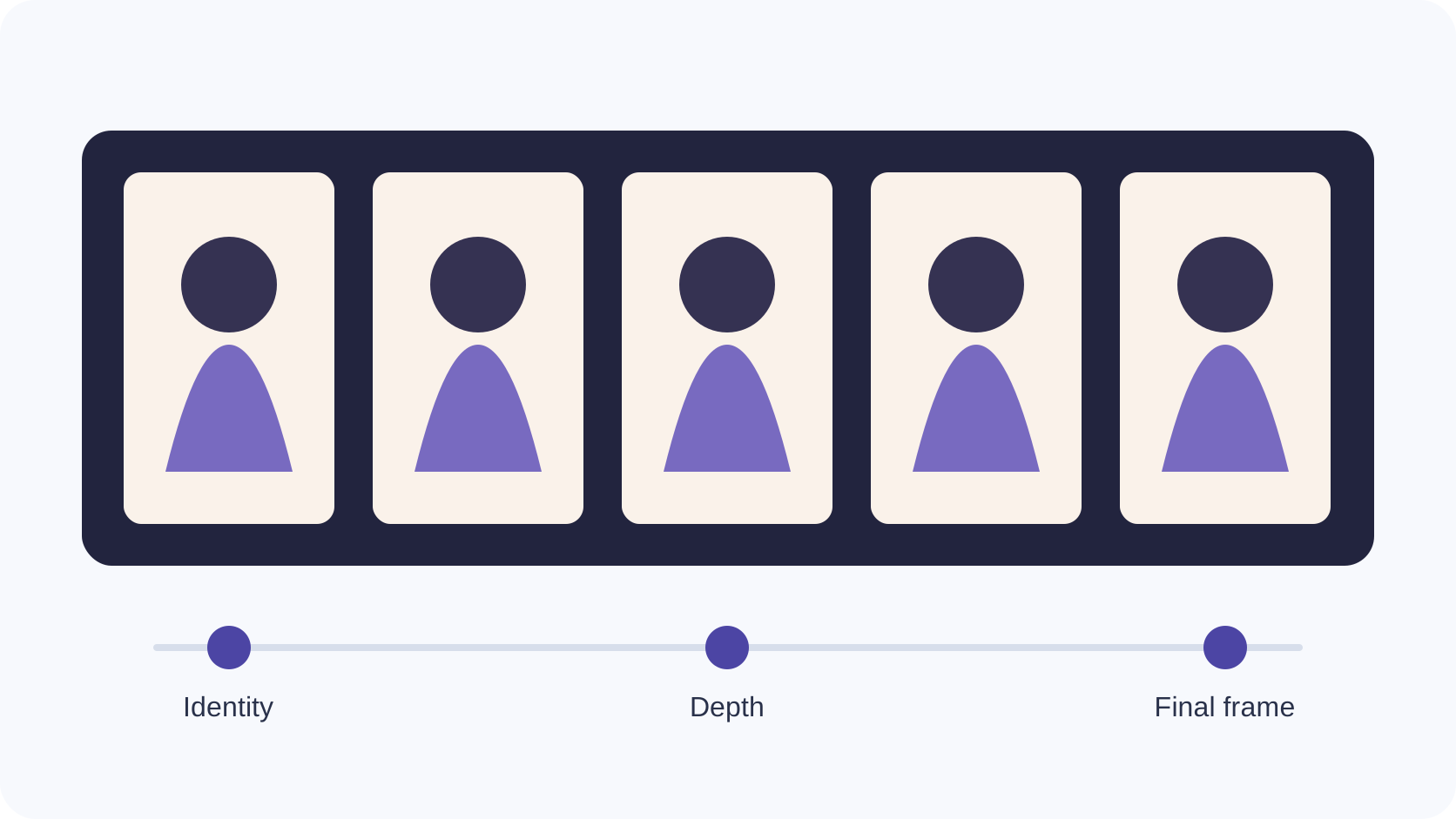
When the result appears, watch it once without stopping. This first pass tells you whether the overall feeling matches the photograph. Then review more deliberately. Compare the opening frame with the source, inspect the middle for unwanted shape changes, and study the final frame for warping or an abrupt stop. Download only the version that passes all three points.
Review motion, not just a single frame
A video can contain one beautiful frame and still fail as motion. Look for sudden speed changes, background breathing, sliding edges, duplicate objects, flickering jewelry, shifting text, or a face that changes between frames. Pay attention to the boundary between subject and background. Hair, glass, thin straps, railings, and tree branches often reveal whether the depth effect remains coherent.
Sound judgment also depends on the destination. A subtle five-second clip may feel elegant at full width but too quiet as a tiny feed preview. A faster result may attract attention yet feel distracting on a portfolio page. Review at the size and pace where people will actually see it, just as the social image crop workflow recommends checking every placement rather than assuming one composition fits all.
Where a cinematic photo video works well
The scene is useful when you want more atmosphere than a still image but less complexity than a produced video. It can introduce a travel photograph, give a campaign portrait a gentle sense of presence, add movement to a mood board, or turn a product hero image into a short social asset. It can also help test whether a still concept contains enough depth and visual focus for a longer motion direction.
Use the clip as one asset within a larger layout. Add copy, a call to action, captions, or music in the publishing tool appropriate to the destination. Keep the generated master clean so different versions can be prepared without repeating the generation. For a different kind of small motion asset, the animated profile picture guide explains how a still subject can be framed by a looping effect.
Keep the result honest and controlled
A moving image can look more documentary than a still, so disclose AI generation when the context could lead viewers to believe the motion was recorded. Do not use a generated clip to claim that a person performed an action, attended an event, endorsed a product, or appeared in a place when that did not happen. Obtain permission before animating a recognizable person and avoid private or sensitive source images.
Preserve the original file, the generated video, and a note of where the result was used. If the clip represents a real product or location, have an informed reviewer compare it with the source before approval. Generatorr makes it easy to explore a direction; the final publication decision still belongs to the person responsible for accuracy, consent, and context.
A final cinematic motion checklist
- The source is sharp, permitted, and complete inside the frame.
- The subject remains recognizable from the first frame to the last.
- Text, labels, hands, accessories, and product details remain stable.
- Background motion supports the scene without bending architecture or duplicating objects.
- The clip has one clear motion direction and no abrupt speed change.
- The final frame settles cleanly at the intended viewing size.
- The published context clearly identifies generated motion when viewers could otherwise be misled.
People also ask
Frequently asked questions
What is the Generatorr Cinematic Motion scene?
It is a focused Generatorr scene that turns one still photo into a five-second video with subtle camera movement and atmosphere.
Which photos work best for cinematic motion?
Use a sharp, well-lit image with one clear subject, visible depth, complete edges, and enough surrounding space for gentle movement.
Can I animate a portrait with the scene?
Yes, when you own the adult portrait or have permission. Review the face, hair, glasses, jewelry, hands, and final frame to confirm identity stays stable.
Can I use the result for a product post?
Yes, but compare labels, logos, proportions, controls, and packaging details with the verified source before publishing the clip as product content.
How long is the cinematic motion result?
The focused scene creates a five-second video designed for one restrained movement rather than a complex multi-event sequence.