
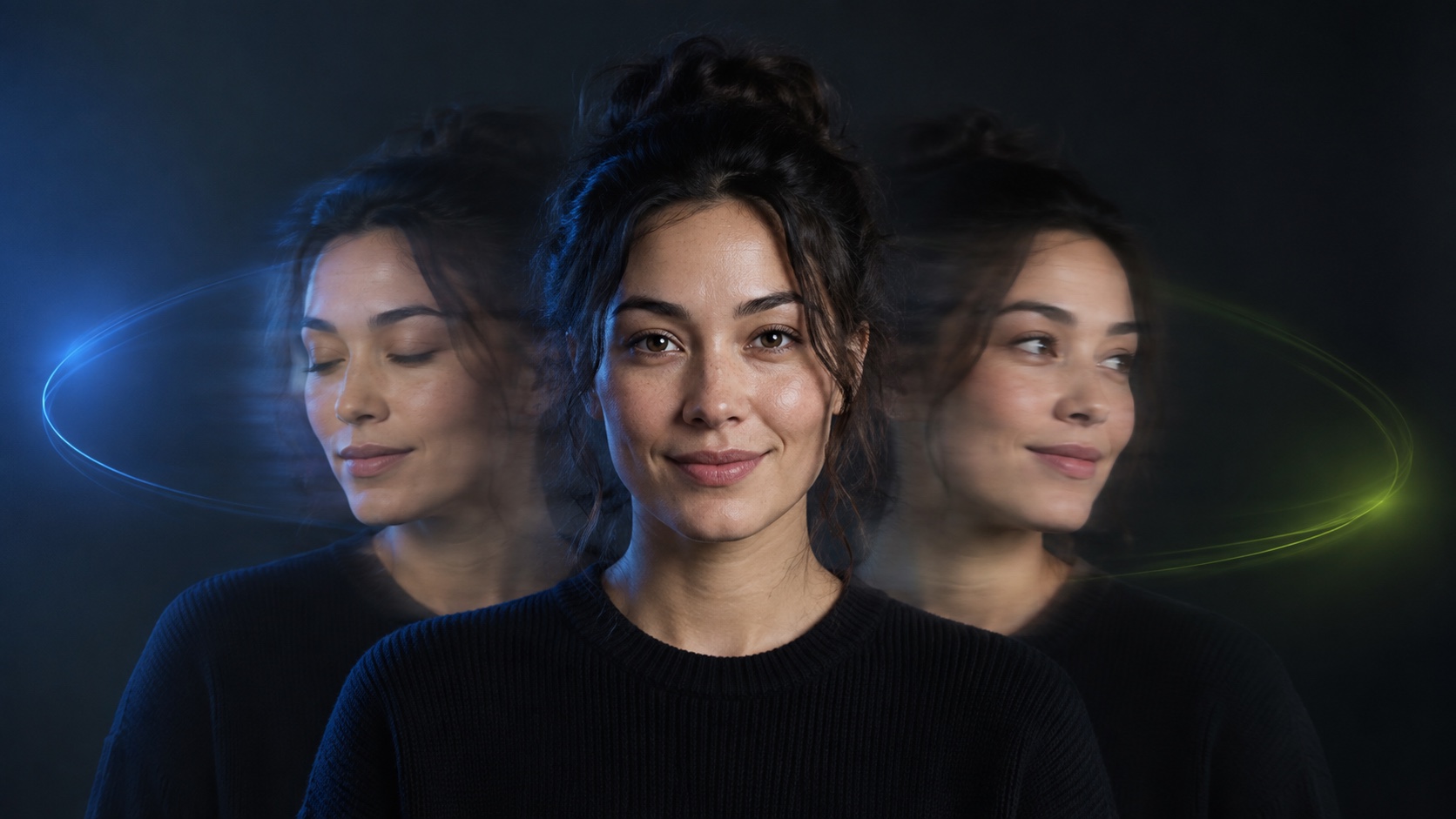
Makerr Studio's Animated GIF Profile Picture tool turns one uploaded portrait into four circular GIF options with different animated background effects. The person in the original photo remains still while effects such as sunburst, waves, sparkle, or rings move behind the subject. Upload a centered portrait, generate the four versions, compare each result with the source photo, preview the loop at avatar size, and download the version that stays recognizable and fits the platform where you plan to use it.
What the Animated GIF Profile Picture tool creates
The Animated GIF Profile Picture tool is designed for a focused job: turning a still portrait into a small looping avatar with motion around the subject. It does not ask the person to blink, turn, smile, or perform. Instead, the original portrait remains still while an animated background is added behind it. This makes the result easier to recognize at small profile-picture sizes and reduces the identity changes that can occur when a face itself is animated.
Open the AI image editor, choose the GIF profile-picture tool, and upload one photo. The tool prepares four circular GIFs with different animated effects—sunburst, waves, sparkle, and rings—so you can compare several visual directions from the same source. Each option is a creative profile asset, not footage of something the person actually did.
Before and after: a real tool example
The before image below is the same example portrait shown inside the live tool. It has a centered face, an uncluttered background, visible hair and shoulders, and enough space around the subject for a circular crop. Those qualities give the animated treatment room to work without cutting into the face or making the profile picture difficult to recognize.
The after example is an actual GIF result from the tool. Notice what changes and what stays fixed: the portrait remains still, while the color and motion appear around the subject. This is the central quality check for every result. The effect should add energy without rewriting facial features, clothing, hair, or expression.


Choose a portrait that works inside a circle
Start with the largest original portrait available rather than a screenshot or a photo repeatedly compressed by messaging apps. A centered head-and-shoulders composition works well because the face remains readable after the image is reduced. Leave room above the hair and beside the shoulders so the circular crop does not feel cramped. Both eyes, the mouth, jawline, and hairline should be visible.
Even frontal light or gentle side light helps the subject separate cleanly from the background. Avoid severe motion blur, sunglasses, hands covering the face, heavy beauty filters, and complicated scenes with several people. A plain or softly detailed background is useful, but the subject must still have a clear outline because the animated effect is placed around that portrait.
Step by step: generate four animated profile pictures
Save an untouched copy of the portrait, then open the tool and upload the working copy. No motion prompt is required for the subject because the workflow is already configured to keep the portrait still. Select Generate and wait for the four GIF variations to appear. Review every option instead of downloading the first result immediately; the same effect can feel very different depending on the background color, clothing, hair, and contrast of the source photo.
Preview each loop several times at a small size. A large browser preview can make subtle motion look smooth even when the avatar becomes busy or flickers after reduction. Choose the effect that frames the face clearly, returns to its opening state without a visible jump, and remains readable against both light and dark interface backgrounds.
- Upload a sharp portrait that you own or have permission to animate.
- Keep the face centered with space around the hair and shoulders.
- Select Generate to create the four animated background options.
- Compare each GIF with the original portrait before downloading.
- Preview the loop at the approximate size and circular crop used by the destination.
- Download the clearest version and keep the original photo separately.
Compare sunburst, waves, sparkle, and rings
The four effects give the same portrait different visual personalities. A sunburst feels energetic and graphic. Waves can create a softer sense of motion. Sparkle adds small bright accents, while rings create a clean repeating frame around the subject. There is no universally best option: the right effect is the one that supports the portrait without competing with the face.
Compare contrast first. Light hair may disappear against a bright effect, while dark clothing may need a lighter animated field to remain distinct. Then compare motion density. At avatar size, large fast-changing areas can look like flicker, so the quieter loop may be more effective than the most dramatic one. Keep the same source photo while comparing so the animated treatment is the only meaningful variable.
Review the before and after properly
Place the source and result beside each other, as in the example above. Confirm that eye spacing, eyebrow shape, nose width, mouth, jawline, skin tone, hairstyle, clothing, and expression have not changed. The portrait is intended to remain still. If any part of the subject appears to pulse, warp, soften, or shift, choose another variation or start again with a cleaner, higher-resolution source.
Inspect the boundary between the person and animated background. Look for halos around hair, missing shoulder edges, color spill, rough cutouts, or moving pixels inside the face and clothing. Watch the final frame return to the first. A good loop feels continuous, and a captured still frame should remain presentable on its own.
Check platform support before publishing
Animated profile-picture support varies by platform, account type, placement, and device. Some services accept GIFs, some display only the opening frame, and others convert the upload into a static image. Check the destination's current help documentation for accepted format, pixel dimensions, aspect ratio, file-size limit, and whether the image is cropped into a circle.
Keep the subject inside a safe central area so the face, chin, hair, and shoulders survive the platform crop. If the GIF exceeds a file limit, avoid repeatedly recompressing the only master. Keep the downloaded original, then create a separate delivery copy for that destination. Also save a strong still frame for email clients, directories, and other placements that cannot show animation.
Use the GIF as part of a consistent identity
An animated avatar sits beside your name, logo, banners, thumbnails, and posts, so it should feel like part of the same identity. Match the effect colors and energy to the visual tone you already use. A quieter ring or wave may suit a professional service profile, while sparkle or sunburst can fit a creator launch or community account.
Record the approved portrait, crop, chosen effect, still fallback, and intended platforms alongside your brand guidelines for marketing materials. Consistency matters more than using the loudest motion. Reusing one considered animation style across suitable channels will feel more deliberate than choosing a different effect for every account.
Protect consent, privacy, and context
Use your own portrait or obtain clear permission from the adult shown. Permission to post a still photo does not automatically grant permission to create or publish an animated version. Explain where the GIF will appear, who can see it, and whether it will be used commercially. Do not use a private individual's photo, a stranger's image, or a minor's portrait without appropriate authority and a genuinely suitable purpose.
Check the source background for badges, addresses, screens, documents, and bystanders before uploading. Keep the source and exported files in a controlled location, and remove versions you no longer need. When the context could imply that the GIF is a recorded performance, describe it as AI-generated or AI-animated. The result should function as a transparent creative profile asset, not deceptive evidence.
People also ask
Frequently asked questions
Does the tool animate the person's face?
No. The original portrait remains still while animated effects move in the background around the subject.
How many GIF options does the tool create?
One upload produces four circular GIF options using sunburst, waves, sparkle, and rings effects.
What photo works best for an animated GIF profile picture?
Use a sharp, centered head-and-shoulders portrait with even lighting, a visible face, clear subject edges, and room around the hair and shoulders for a circular crop.
Will every platform accept an animated profile picture?
No. Support and limits vary, and some platforms show only a still frame. Check the destination's current format, dimensions, crop, and file-size rules before publishing.
Can I animate someone else's portrait?
Only with clear permission from the person shown and the right to use the photograph for that purpose. Explain the intended audience and context before generating or sharing the GIF.