

Choose Generatorr when you want a clearly named creative workflow that guides a photo or idea toward one result. Choose Pixlr when you want a broader browser editor with manual controls, layers, effects, generative fill, expansion, object removal, background tools, and enhancement. The better tool is the one that gives you enough control without adding unnecessary decisions or correction work.
Quick answer: guided result or open editing canvas
Generatorr is organized around outcomes. Pick a focused tool, add a photo or prompt, generate, inspect, and save. Its AI image editor belongs to a larger workspace that also covers logos, brand kits, image generation, video, portraits, illustration, and practical asset preparation. Pixlr is a broader editing suite for browser, mobile, and desktop, combining familiar manual editing with a substantial group of AI tools.
Creators who know the exact result they want may prefer Generatorr’s reduced setup. People who need to combine crops, layers, effects, selections, text, generative fill, expansion, object removal, and fine adjustments may prefer Pixlr’s open canvas. Neither model is automatically simpler; simplicity depends on whether the interface matches the job.
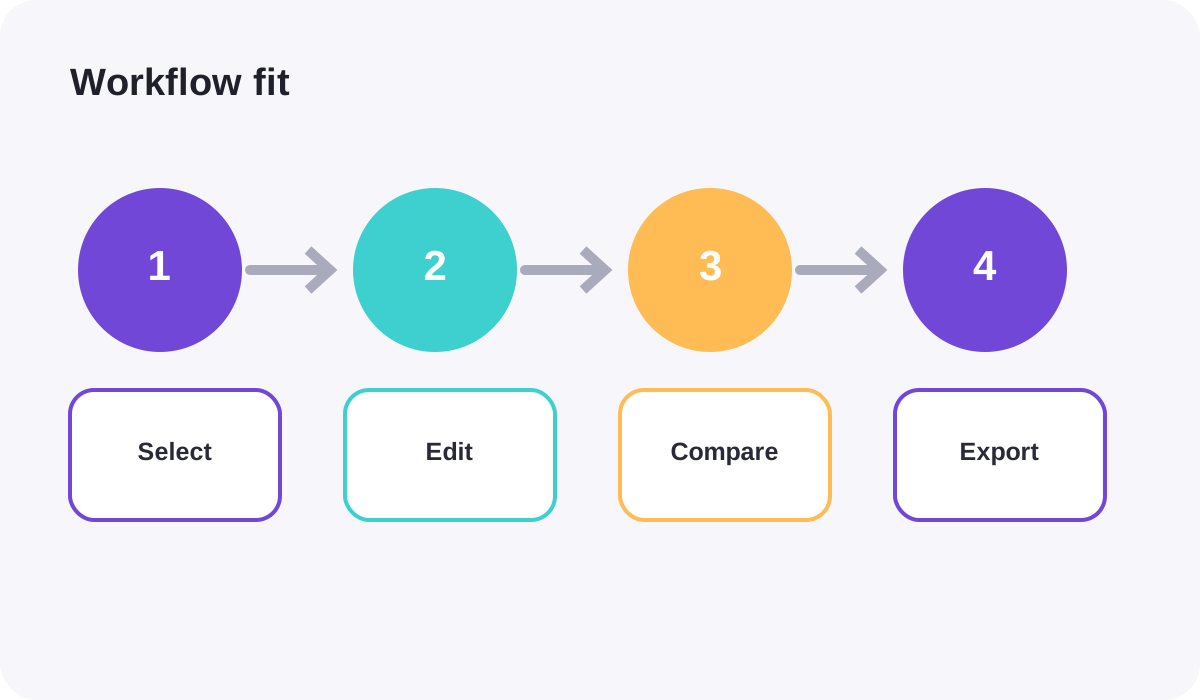
Generatorr reduces decisions for focused tasks
A named tool carries an implied brief. A background remover should preserve the subject, a smile editor should preserve identity, and a sticker-outline tool should preserve the original artwork while adding a clean border. This makes acceptance criteria easier to write and unrelated changes easier to reject.
Generatorr also supports connected creative work beyond photo correction. A founder can explore an image, develop a logo direction, and organize brand assets without starting from a generic canvas each time. The AI logo brief guide offers a practical way to define that work before generating options.
Pixlr offers more traditional editing control
Pixlr’s current official pages describe an online photo-editing suite with crop, resize, opacity, effects, manual positioning, and social or print presets. Its AI tools include image and video generation, generative fill, generative expand, background removal, object removal, super scale, sharpening, denoising, generative transform, and an instruct editor.
That breadth is useful when a single deliverable needs several local corrections. A user can select an area, describe a replacement, move or transform an element, and continue editing. The tradeoff is that an open editor asks the user to make more choices about selections, layers, order of operations, and when an image is finished.
Compare correction paths, not just generation
Deliberately create a difficult case: hair against a similar background, a reflective product, text near an edit, or a portrait with jewelry crossing the subject edge. Generate the first result, then try to correct only the failed region. Record whether the tool lets you restore, erase, select, mask, undo, or regenerate without damaging approved areas.
The AI background remover guide explains why hair, glass, fabric, interior gaps, and contact shadows need separate inspection. A one-click result is only the starting point; the useful comparison is how efficiently each platform reaches a clean, believable export.
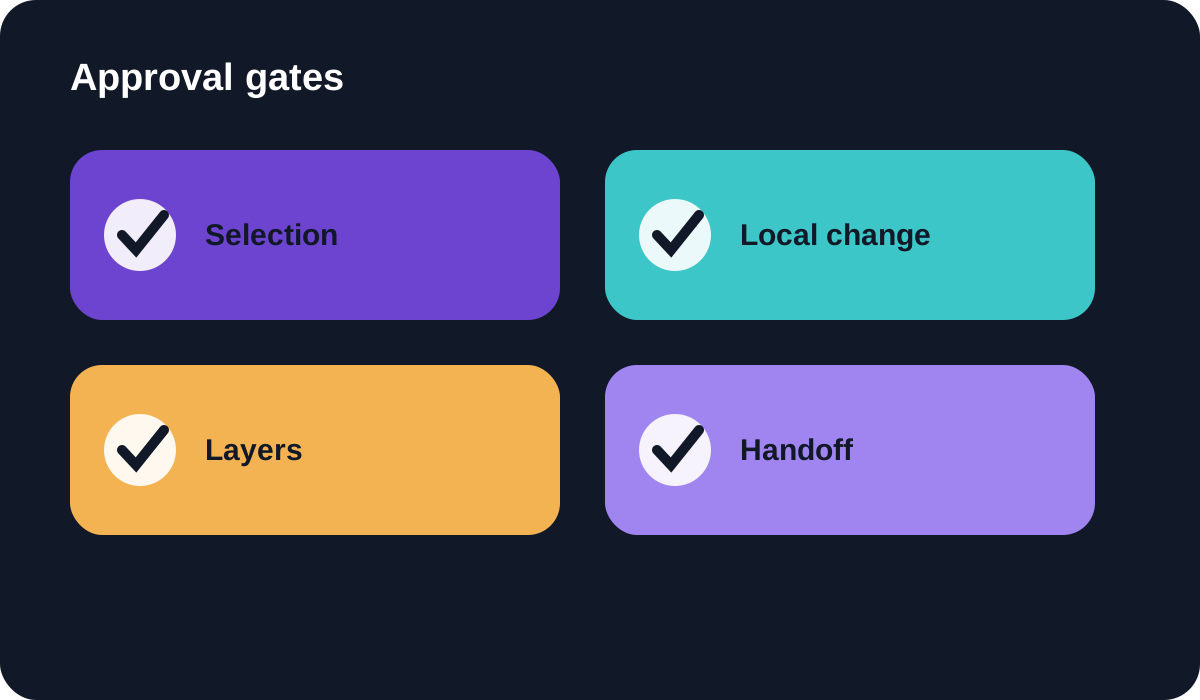
Check layers, file formats, and handoff
If another editor must continue the work, determine whether the workflow preserves editable structure or only produces a flattened image. Confirm which formats carry transparency, quality, and metadata. Keep the original and an approved master before making channel-specific exports.
Use the PNG, SVG, and JPG guide to match file type to the destination. A powerful editor cannot compensate for the wrong handoff format: transparent subjects need alpha support, scalable graphics need real vectors, and photographs usually need an efficient raster export.
Review privacy, rights, and misleading edits
Use source material you own or are authorized to edit. Check current platform terms for storage, deletion, training, team access, and commercial use. Avoid uploading confidential client material until those rules meet the project’s requirements.
Label substantial generative changes when viewers could mistake them for a real event, product condition, or documentary photograph. For portraits, obtain permission and reject identity drift. For products, preserve labels and geometry. Editing control increases responsibility as well as creative range.
Verdict
Generatorr is the more direct choice for guided creative tasks, portrait effects, and connected small-business brand work. Pixlr is the stronger candidate for users who want a broad browser editor with layers, manual controls, selections, effects, and several generative repair tools in one canvas.
Run a real edit from source to delivery in both. Choose Generatorr when a clear path removes unnecessary decisions. Choose Pixlr when additional manual control genuinely reduces correction time. The best result is the one that remains accurate, editable enough for the handoff, and appropriate for its audience.
People also ask
Frequently asked questions
Is Generatorr easier than Pixlr?
Generatorr can be easier for a specific named task because it reduces setup. Pixlr can be easier when the job needs several manual and generative edits in one canvas.
Which tool gives more manual control?
Pixlr’s broader editor emphasizes layers, selections, effects, positioning, and local generative tools. Generatorr emphasizes focused outcome-based workflows.
Which is better for beginners?
Beginners with a clear goal may prefer a guided Generatorr tool. Beginners who want to learn a general editing canvas may prefer Pixlr. Test the actual workflow you need.
What files should I use for comparison?
Test a portrait, a product with text, fine hair or fabric, a transparent-background need, and an image requiring multiple aspect ratios.