

Choose Generatorr for a direct route into focused creative effects, portraits, logos, brand assets, image generation, or motion. Choose insMind when your work centers on product and everyday photo editing with backgrounds, enhancement, expansion, resizing, object replacement, templates, and related commerce tools. Test the exact source, correction path, and export you need because overlapping feature names can produce very different workflows.
Quick answer: focused creation or a product-editing toolkit
Generatorr turns a photo or idea into a specific creative result through named tools. Its AI image editor is part of a workspace that includes logos, brand kits, image and video generation, portrait transformations, background work, illustration, and asset preparation. insMind’s current editor emphasizes product and everyday photo tasks such as background removal, AI backgrounds, enhancement, expansion, smart resize, object replacement, generative fill, filters, and templates.
The choice is clearer when you define the final deliverable. Generatorr may suit a creator exploring a portrait, character, sticker, logo, or short animation. insMind may suit a seller or marketer preparing a product photo, marketplace layout, resized campaign asset, or template-based composition.
Generatorr is strongest when the outcome is specific
Focused tools reduce the number of decisions between upload and review. A user can choose a particular transformation, keep the request narrow, and compare the result with the source. That structure is especially helpful for identity-sensitive portraits and one-purpose assets where unrelated changes are easy to identify.
Generatorr’s connected logo and brand-kit work is also relevant for small businesses. The logo mockup review checklist shows how to test an identity in realistic settings before approving it. Creative generation is more useful when the output survives real applications rather than only looking good in one preview.
insMind is oriented toward practical photo production
insMind’s official editor currently describes workflows for removing or replacing backgrounds, sharpening and enhancing photos, expanding and resizing the canvas, replacing objects, adding details with generative fill, and creating new images from prompts. It also presents product-oriented tools such as AI shadows and background generation alongside templates and design elements.
This combination can be attractive when one asset must move from cleanup to layout without leaving the platform. As with any broad suite, verify whether the exact tool, resolution, credits, watermark behavior, and download format you need are available on the plan and interface you will actually use.
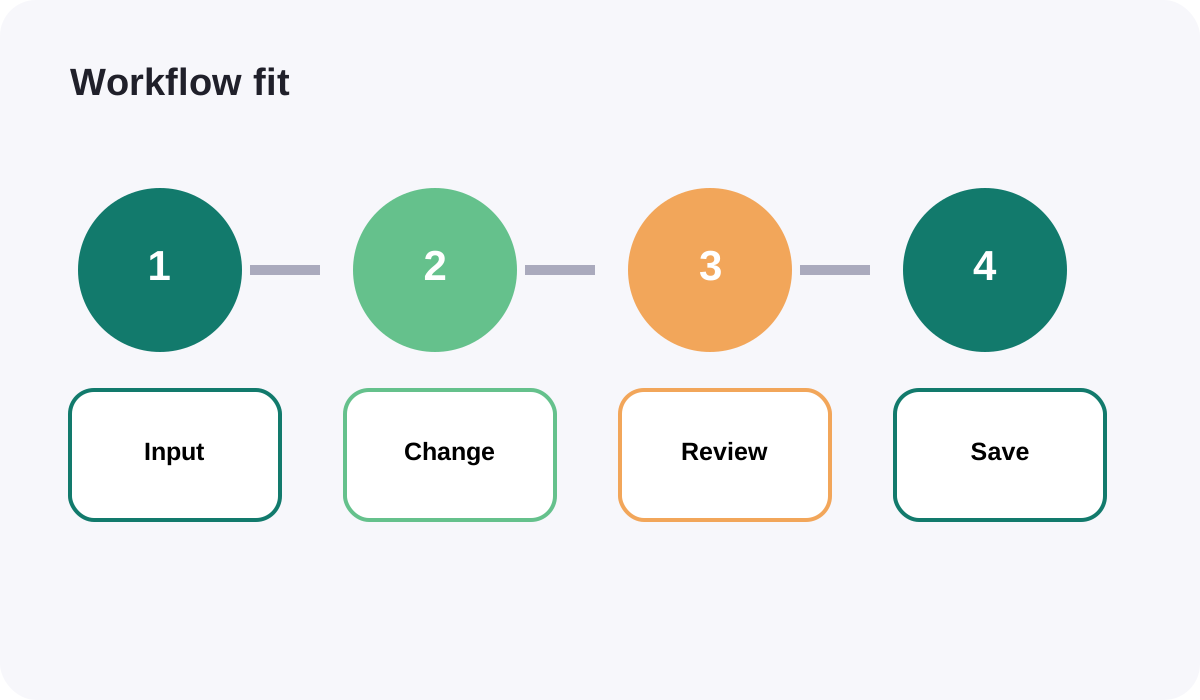
Test the first three paragraphs of the workflow: input, change, review
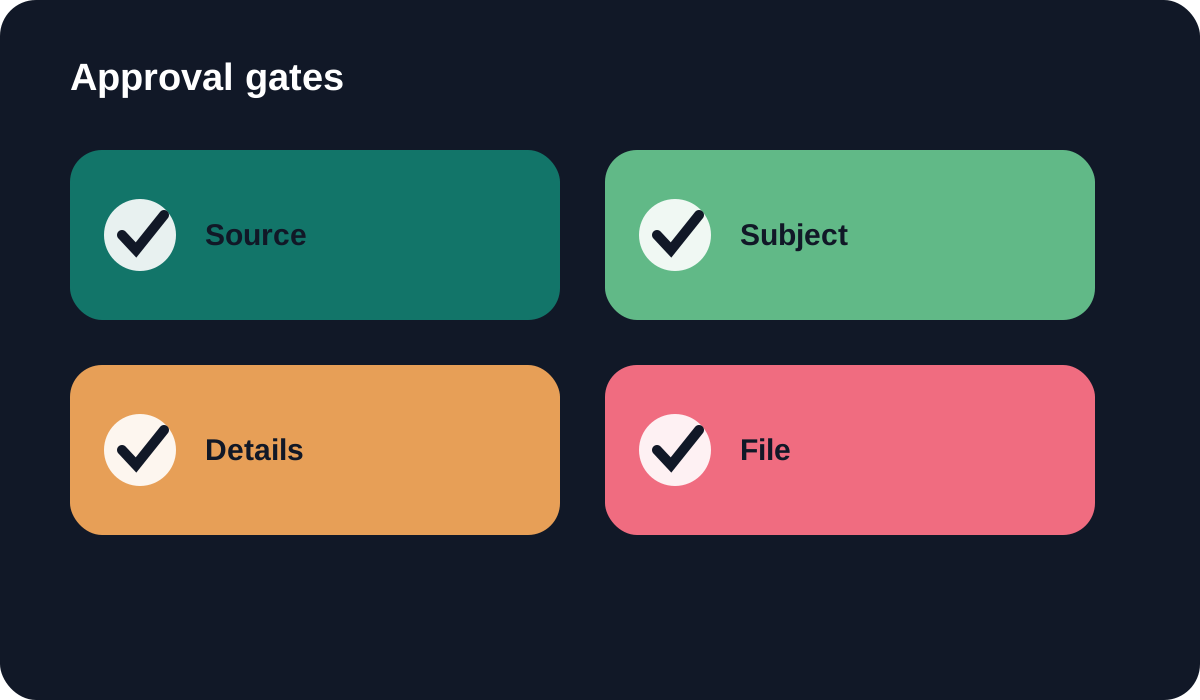
Use the same original file in both platforms. Write one change only, such as replacing the background while preserving the product, or retouching light while preserving the person. Compare how clearly each tool communicates source requirements, what it changes automatically, and how you correct a failed detail.
Then review at normal size and at 100 percent. The natural AI photo-retouch workflow provides a useful sequence: correct light and color first, remove only real distractions, preserve texture and identity, and inspect the entire frame before export.
Compare templates with original creative direction
Templates speed up layout, but they can also make unrelated brands look similar. If you use a template, replace default typography, colors, spacing, and imagery with approved brand choices. Check that the product remains the focal point and that text is readable at the real placement size.
A focused generated image may offer more visual distinction but require more direction and review. Build a small test set: one template-led product post, one original scene, and one simple clean catalog image. Ask which version communicates the product accurately and can be repeated without losing brand recognition.
Include export, privacy, and commercial use
Check transparency, pixel dimensions, color, compression, watermarks, and whether the downloaded file is large enough for its destination. Keep a full-quality master before making social or marketplace derivatives. Do not repeatedly edit compressed delivery files.
Review current terms for uploaded-image retention, deletion, model training, commercial use, and team access. Obtain permission for recognizable people and protect confidential product launches. Clearly identify generated or composite scenes when they could mislead viewers about a product’s real appearance or setting.
Verdict
Generatorr is the more direct fit for guided creative transformations, portraits, logos, and connected brand work. insMind is the stronger candidate for users who want product-oriented cleanup, backgrounds, enhancement, resizing, templates, and everyday photo editing in a broad toolkit.
Run the same real job in both and measure acceptable exports, not raw generations. The better platform is the one that preserves the subject, makes correction understandable, produces the required file, and can be repeated by the people who will actually use it.
People also ask
Frequently asked questions
Is Generatorr better than insMind?
Generatorr is a stronger fit for focused creative and brand workflows; insMind is oriented toward product and everyday photo editing. The right choice depends on the repeated deliverable.
Which tool is better for product photos?
insMind presents many product-oriented background, enhancement, shadow, resize, and template tools. Generatorr may suit focused edits and broader creative or brand work. Test product fidelity.
How do I compare AI photo editors fairly?
Use the same original, one written change, identical output requirements, and a shared review checklist. Count correction time and failed attempts as well as generation time.
Should I trust the first AI result?
No. Inspect the subject, text, edges, color, lighting, background, dimensions, and file format before approving or publishing it.